The 3-2-1 Backup Rule: Explained simply
Paul Betteridge
Workshop Owner
The 3-2-1 Backup Rule: Explained simply for home users
Almost weekly, a customer walks into my shop carrying a broken external drive containing their entire library of family photos, bookkeeping, or business spreadsheets with no other copy. They often say: "But I backed up my laptop onto that drive!"
Copying files from your PC to an external drive is not a backup unless the data exists in both places. If that single external drive fails, gets dropped on a tile floor, or suffers a power surge, your files are gone.
To protect your irreplaceable data, you need the industry-standard 3-2-1 Backup Strategy. Here is how to set it up simply without overcomplicating things.
What is the 3-2-1 Backup Rule?
The rule of thumb is remarkably simple and covers three basic rules:
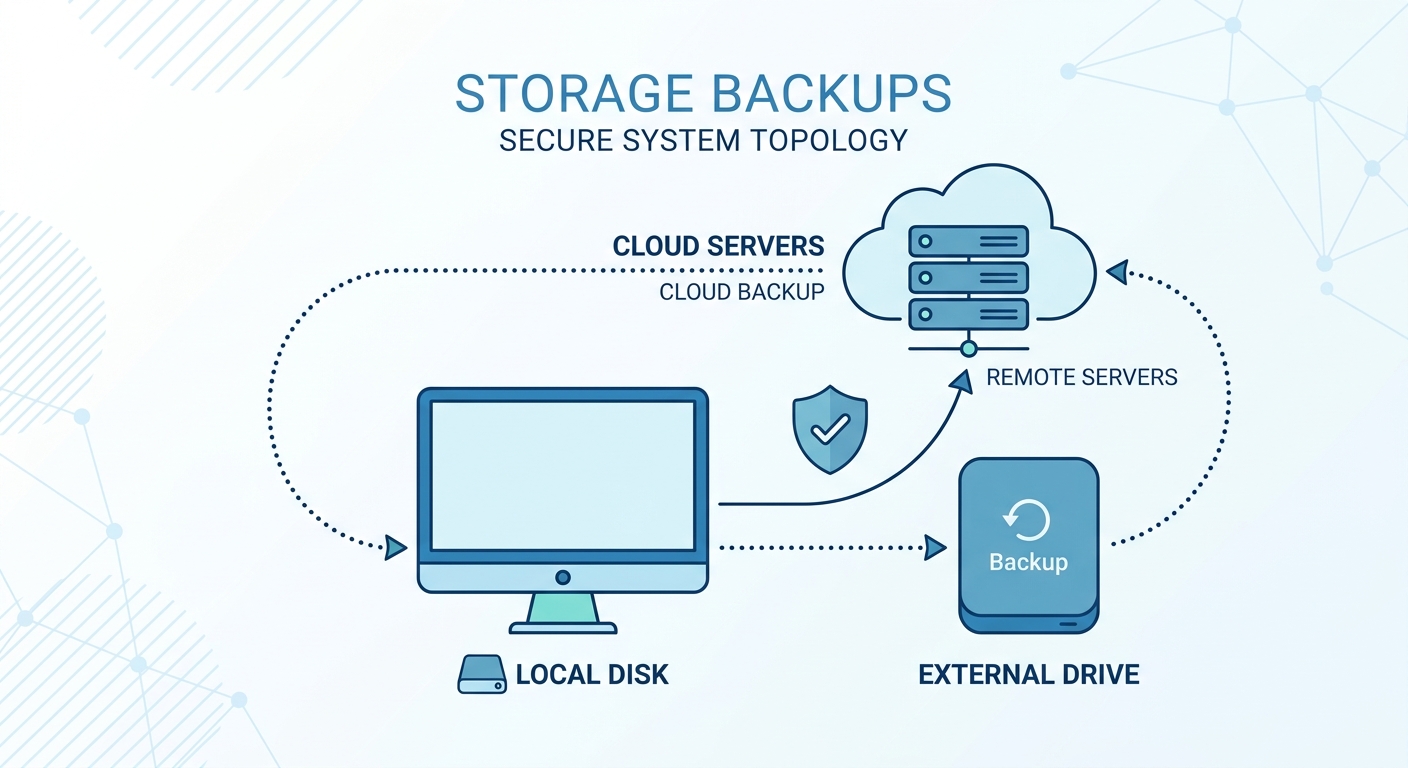
- 3 copies of your data: Your main original files plus at least two backup copies.
- 2 different types of storage media: Store your data on two distinct device formats (such as your internal PC drive and an external USB hard drive).
- 1 copy stored off-site: Keep one backup completely outside your home or office (such as on a secure cloud server).
Why is storing a copy off-site critical?
Many people plug an external desktop backup drive into their computer and leave it on their desk permanently. However, this leaves you exposed to several common risks:
- Ransomware & Malware: If your PC gets infected, malware can encrypt every drive connected through local USB ports.
- Power Surges: A lightning strike or high mains voltage spike can fry both the computer and the connected external backup drive.
- Physical Theft or Natural Disasters: Fires, flooding, or home break-ins can destroy or take both physical units simultaneously.
An off-site backup, usually via the cloud, remains completely isolated from local physical events.
A Simple, Cheap Implementation Plan
Getting a 3-2-1 backup configured doesn't require expensive IT servers. Here is a simple, affordable setup for home users:
Copy 1: Your Internal Computer SSD
This is your main active, daily operating storage during normal PC or Mac use.
Copy 2: Local External USB Drive (Time Machine / Windows Backup)
Buy a basic, reputable 1TB or 2TB external desktop drive.
- Mac users: Plug the drive in, navigate to System Settings, and turn on Time Machine.
- Windows users: Search your settings for "File History" or use a free tool like Macrium Reflect to back up on a schedule.
Copy 3: The Off-Site Cloud Copy
Utilise an automated, background-sync cloud system. Secure services like OneDrive, iCloud, Google Drive, or Carbinite can back up your primary folders automatically behind the scenes.
By spending a few minutes setting this up, your files will remain safe and secure, even if a major hardware failure occurs tomorrow. If you want a hand configuring your local backups, I'll be happy to set this up for you in the workshop.
Have a similar problem?
I see these issues daily in my Poole workshop. Start an enquiry to check your options and resolve the issue.