Why are files disappearing from my downloads folder?
Paul Betteridge
Workshop Owner
Why are files disappearing from my downloads folder?
I received an urgent call last week from a customer who believed their Windows 11 computer was being targeted by an active hacker because files in their Downloads folder were quietly deleting themselves overnight.
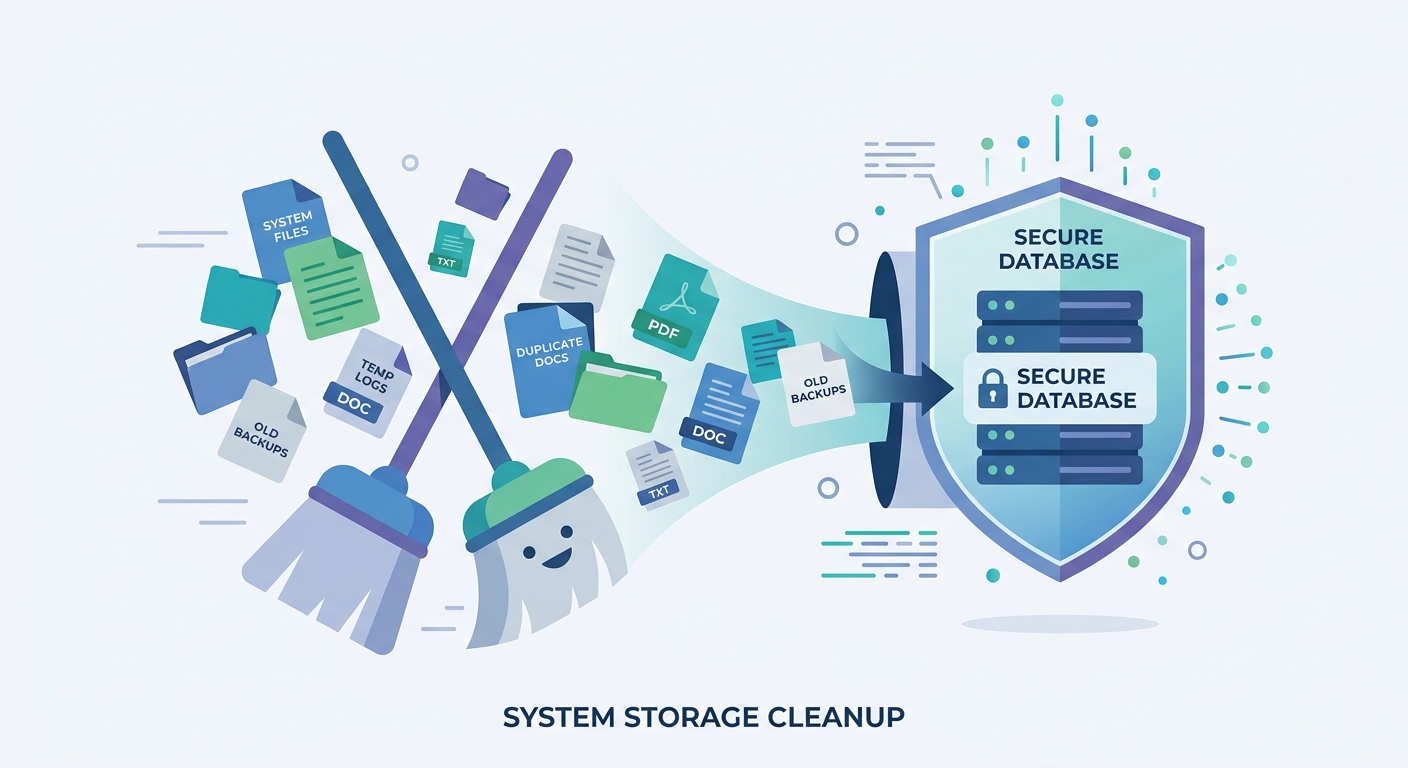
In 99% of these situations, the culprit isn't a malicious hacker—it is a built-in Windows 11 feature called Storage Sense behaving exactly as it was configured to, even if that configuration is a surprise to you.
Let's look at why Windows deletes these files and how to adjust your settings to prevent data loss.
What is Storage Sense?
Storage Sense is an automated maintenance tool built into Windows 11. It is designed to run in the background when your drive starts running low on space, sweeping out junk and leftovers like:
- Temporary internet cache files
- Thumbnail database logs
- Leftover debris from old Windows Updates
- Files sitting in the Recycle Bin for too long
By default, Storage Sense also includes a setting to automatically clean up your primary Downloads folder if files have remained unchanged for a certain number of days (usually 30 days).
How to check and change your settings
If you rely on your Downloads folder as a permanent filing cabinet, you should disable this setting immediately.
Here is how to find and adjust it on your Windows 11 machine:
- Click on your Start button and select the gear icon for Settings.
- Navigate to System on the left menu, then select Storage on the right.
- Scroll down under storage management and click on the Storage Sense options.
- Look for the dropdown menu titled: "Delete files in my Downloads folder if they haven't been opened for more than:"
- Change this dropdown setting from
30 Days(or whatever it is currently set to) to Never.
This will stop Windows from deleting files from your Downloads directory.
Best Practice: The Downloads Folder is not a filing cabinet
While changing the Storage Sense setting solves the immediate issue, it is highly recommended to avoid using the Downloads folder as long-term storage.
Because web browsers use this folder as a temporary landing pad, files here are vulnerable to:
- Accidental mass deletions during browser clears.
- Syncing issues or temporary user profile bugs.
- Accidental clearing during automated cleanups or tune-ups.
Best practice tips:
- Install downloaded software installers, but delete the installer file afterward to reclaim space.
- Move important PDF manuals, receipts, or personal documents immediately into your dedicated Documents or Pictures folders.
- Keep your Downloads folder clear and organised so you can spot new downloads instantly.
If files have disappeared that you desperately need back, turn off your computer immediately to prevent them from being overwritten, and bring it to me—we have a high rate of successful recovery on deleted files!
Have a similar problem?
I see these issues daily in my Poole workshop. Start an enquiry to check your options and resolve the issue.